Your Local LLM Is Slow? Check These Settings First
Running a large language model locally and getting slow output? The fix is usually a free software setting, not more hardware. Here's how to find it.
Someone spends real money on a machine to run a large language model locally, follows a tutorial, and gets output that crawls at under one word per second. The instinct is to blame the hardware and start pricing a bigger GPU. In most cases, that instinct is wrong. The tutorial’s own default settings are often the thing making it slow, and there is no error message to tell you so.
That gap between what a machine can do and what it actually does is the real subject here. A curious tester named Alex Ziskind ran a series of controlled benchmarks on a compact desktop PC, methodically flipping one setting at a time, and the results make the point better than any spec sheet could. Before spending on new silicon, there is a specific, repeatable order of checks worth running first. It also echoes a pattern DecodeStack has covered before in how quietly access to a specific AI model can disappear: the software layer, not the hardware in front of you, is usually where the real story sits.
The machine and the model, briefly
Ziskind’s test rig was a Khadas Mind Pro, a mini-PC built around Intel’s Panther Lake chip family (the Core Ultra X7 358H or X9 388H, depending on configuration), with up to 64GB of shared LPDDR5X memory and a Thunderbolt 4 connection. None of that is the point of this article. The device is simply a stand-in for any modern machine that runs a language model locally: a gaming laptop, a Mac with unified memory, a desktop with a discrete graphics card. The diagnostic method that follows applies regardless of the specific box, because it targets how the software uses the hardware, not the hardware itself.
The model under test was Qwen3.8-27B, a 27-billion-parameter open-weight model released by Alibaba’s Qwen team under a permissive license, chosen because it is large enough to stress a consumer machine’s memory without needing a data-center card. The software running it was llama.cpp, the open-source engine that most local-LLM tools (LM Studio, Ollama, and others) actually run underneath their friendlier interface. Everything below is a llama.cpp setting, which means it applies wherever llama.cpp is doing the work, not just on this one device.
First check: does the model actually fit
A language model, once loaded, needs to live somewhere the processor can reach quickly: either dedicated video memory on a graphics card, or, on machines with shared memory like this one, a pool that the CPU and the graphics cores both draw from. Most tutorials tell you to push every layer of the model onto that fast memory using a flag called --n-gpu-layers (often written -ngl, sometimes --ngl in shorthand), typically set to 99, 999, or -1, all of which mean “put everything on the GPU, no matter what.”
This is the setting most copy-pasted guides default to, and Ziskind’s numbers show exactly why that is a problem. With 60 of the model’s 64 total layers forced onto the graphics memory — close to the maximum, though not literally every layer — throughput dropped to 0.82 tokens per second, close to one word every one to two seconds. Manually holding back four more layers, so the model settled into 56 layers on the GPU instead of 60, brought that same setup to 14 tokens per second, roughly seventeen times faster, on identical hardware, running the identical model.
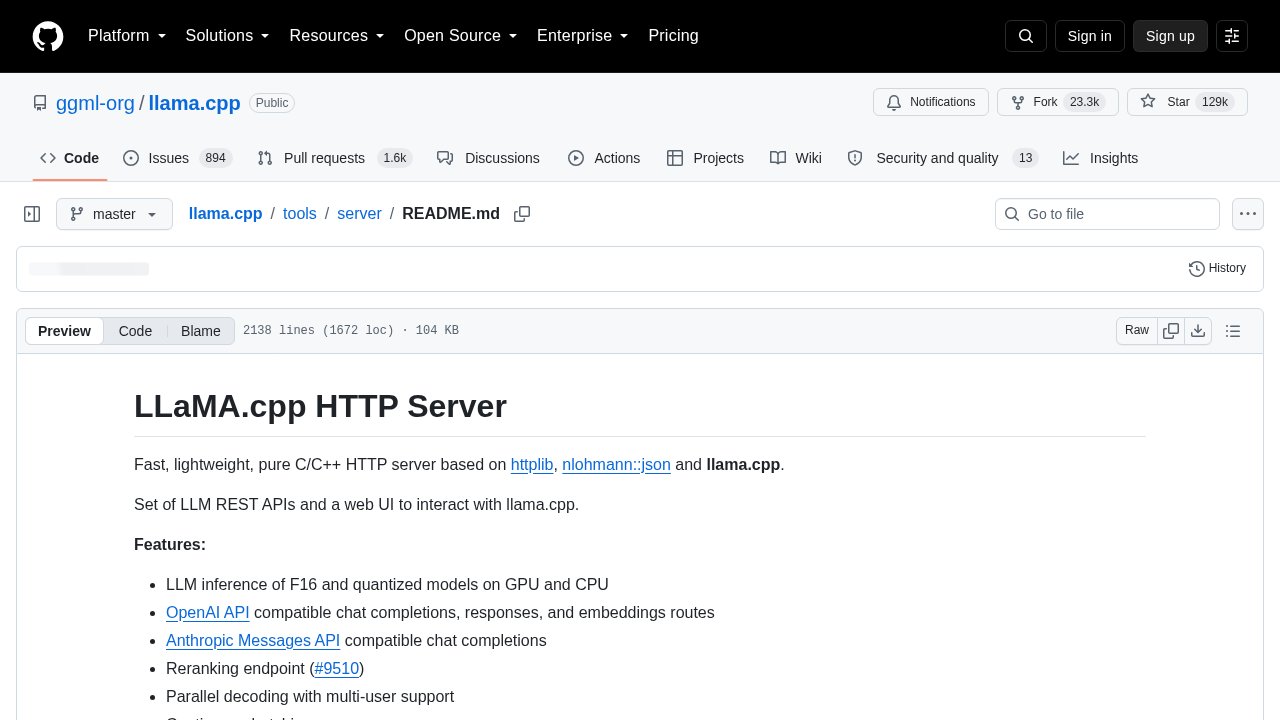
llama.cpp server docs — the official documentation for the --n-gpu-layers flag discussed above.
The mechanism is not exotic. When a model doesn’t fit cleanly in the fast memory pool, the system has to keep swapping pieces in and out, and that swapping costs far more time than simply leaving a small slice of the model on the slower, more spacious system path in the first place. The maximum-layers flag assumes the fit is clean. When it isn’t, nothing warns you: the model still loads, still answers, just at a crawl. This is the article’s central counter-example, and it cuts against the tutorial-world assumption that more layers on the graphics card is always the faster option. It is not, once the memory budget is exceeded.
Second check: how the model is compressed
Before touching layer counts, it is worth checking how the model file itself was compressed, a process called quantization. Full-precision model weights take enormous amounts of memory, so nearly every model distributed for home use has already been shrunk by representing each number with fewer bits, trading some numerical precision for a smaller file. The catch is that not all quantization schemes at the same bit-depth are equally efficient.
Ziskind’s test compared two versions of the same model, both nominally “4-bit” but built with different internal schemes: a Q4_K_M file at roughly 18GB, and a more compact IQ4_XS file at roughly 13GB. Swapping to the smaller file let the model fit entirely inside the fast memory pool, which nearly doubled throughput, from 14 tokens per second up to 27 tokens per second. To check whether that smaller file was noticeably worse at its job, the test measured perplexity, a standard score for how well a model predicts real text (lower is better, and it is the customary yardstick for this kind of comparison). Both files scored 6.8 on the Wikitext-2 benchmark, a widely used text sample for this exact measurement, meaning the smaller file was not measurably worse on this comparison. That is not a universal guarantee for every model and every use case, but it demonstrates that the more compact scheme is worth trying before assuming a smaller file means a worse answer.
The practical lesson: a model that almost fits is often one quantization format away from fitting completely, and completely fitting is where the real speed lives.
Third check: let a smaller model do the guessing
The third technique Ziskind tested is called speculative decoding, and it is already a stable, well-documented feature of llama.cpp, not something new. The idea: instead of having the large 27-billion-parameter model generate every single word from scratch, a much smaller “draft” model guesses a short run of upcoming words, and the large model then checks that guess in a single pass instead of generating word by word. When the small model’s guesses are right, which happens often on ordinary text, the large model effectively confirms several words at once instead of computing them one at a time.
In a separate isolated comparison of speculative decoding on its own, apart from the memory-fit and quantization fixes above, turning it on roughly doubled throughput, from 5 tokens per second up to 11 tokens per second, without changing the answer quality, since the large model still verifies every word. There is a tuning knob here too: how many words ahead the small model is allowed to guess before the large model checks in, sometimes labeled draft-max or similar in configuration. llama.cpp’s documented default for that setting is 3, a deliberately conservative number. Ziskind found that pushing it higher made things worse, not better, because a longer unchecked guess is more likely to be wrong somewhere in the middle, and a wrong guess anywhere in the run forces the large model to throw away and redo that whole stretch. The default exists for a reason; treat it as a starting point to test around, not a limitation to override.
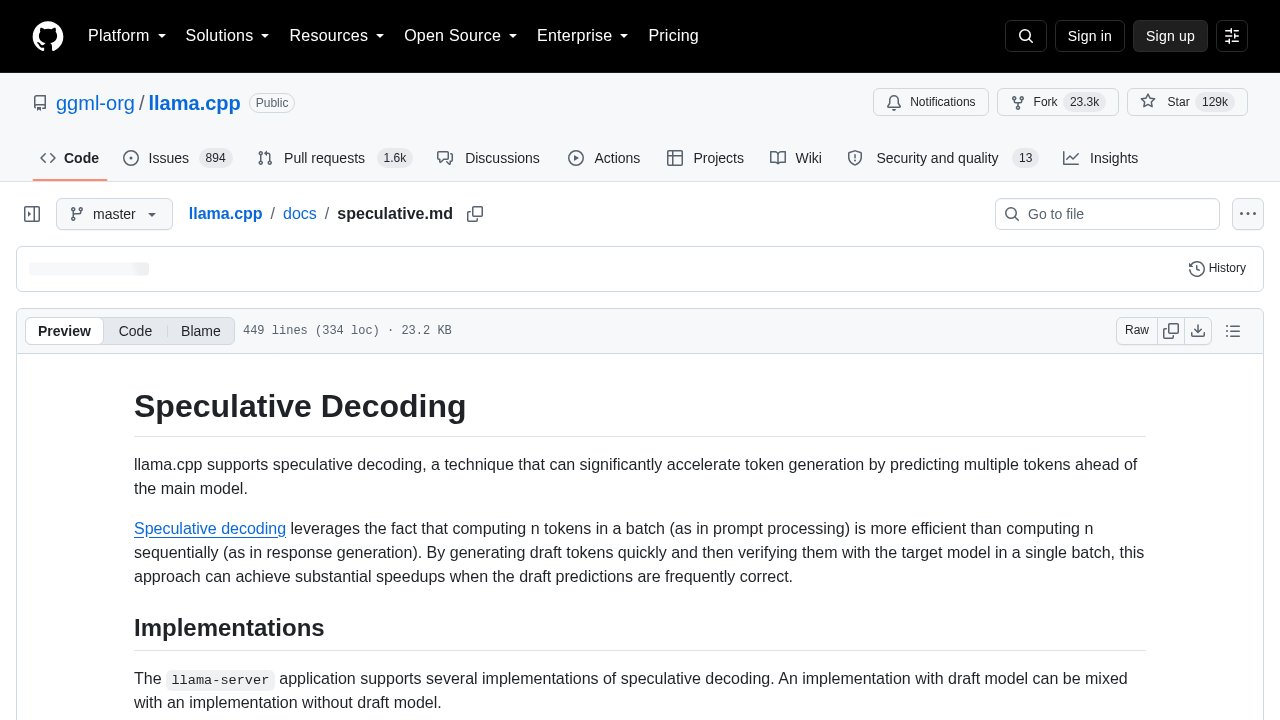
llama.cpp speculative decoding docs — the engine’s own documentation for the technique described above.
What the cable is and isn’t responsible for
One more result worth flagging, because it corrects a common assumption: on a machine with shared or unified memory, the connection linking components — in this case Khadas’ proprietary Mind Link interface, a PCIe-based connector rated for up to 15.8 gigabytes per second, not a standard Thunderbolt or USB4 port — is rarely the bottleneck people assume it is. During ordinary text generation in this test, actual traffic across that link measured around 2 megabytes per second, a small fraction of its rated capacity. The limiting factor for local language model speed is almost always memory bandwidth, meaning how fast data can move between the memory pool and the processing cores doing the math, not the transport link between separate components. Upgrading a cable or a port will rarely move the needle on this kind of workload; the memory system itself is where the ceiling sits.
Putting the checks in order
None of the three techniques above are new. Quantization, speculative decoding, and manual layer offload have existed in llama.cpp for a long time, and anyone who has spent time in local-AI forums has likely seen all three mentioned separately. What this particular test demonstrates well is what happens when they are checked in sequence, and what happens when the most commonly copy-pasted default actively works against you.
A sensible order, generalizable to any machine running llama.cpp underneath any front-end:
- Confirm the model actually fits in the fast memory pool at your chosen layer count, rather than assuming the maximum-layers flag is safe by default.
- Try a more compact quantization format at the same bit-depth before assuming the model needs to shrink in quality, not just in size.
- Turn on speculative decoding if a compatible smaller draft model exists for the same model family, and leave the draft-depth setting at its documented default unless testing proves otherwise.
- Leave transport links (Thunderbolt, USB4, PCIe) out of the troubleshooting for shared-memory setups; they are rarely the constraint.
The order matters because each step changes what the next one needs to solve. Fixing the memory fit first often makes the compression and speculative-decoding gains larger, since the model is no longer fighting its own placement.

Frequently asked questions
Why does setting GPU layers to the maximum sometimes make a local LLM slower, not faster?
Setting the maximum-layers flag forces every layer of a large language model onto the fast graphics memory pool, even if the model doesn’t cleanly fit there. When it doesn’t fit, the system has to repeatedly swap data in and out of that pool, which costs far more time than leaving a small portion of the model on the slower system memory path instead.
Does a smaller quantized model file always mean worse answers?
A smaller quantized file is not automatically worse; it depends on the specific compression scheme, not just the bit-depth. In one documented test, a more compact 4-bit format scored identically to a larger 4-bit format on a standard perplexity benchmark, while running noticeably faster because it fit entirely in memory.
What is speculative decoding, in plain terms?
Speculative decoding lets a small, fast “draft” model guess several upcoming words, which a larger model then checks in one pass instead of generating each word individually. When the guesses are correct, which is common on ordinary text, this roughly doubles output speed without changing the final answer’s quality.
Is Thunderbolt or USB4 speed the bottleneck for a local language model?
On a machine with shared or unified memory, the transport link connecting components is rarely the limiting factor for language model speed. Actual data traffic across that link during text generation is typically a small fraction of its rated capacity; memory bandwidth, not cable speed, sets the practical ceiling.
Do I need to buy new hardware if my local LLM is running slowly?
Not necessarily. Before buying new hardware, check whether the model fits cleanly in available fast memory, try a more efficient quantization format, and enable speculative decoding if a compatible draft model is available. These are free software adjustments that, in tested cases, delivered far larger speed gains than the underlying hardware alone would suggest.